
Download Delete Apps Uninstaller – Fast, Free, Secure App Removal Tool
Overview
The Delete Apps Uninstaller is a lightweight, free utility designed to give Windows users a single, convenient place to uninstall applications that they have added to their device. Unlike the built‑in “Programs and Features” control panel, this tool centralises every third‑party program into one tidy list, letting you remove unwanted software with a single click. It works by invoking the operating system’s native uninstall functions, so it never interferes with system‑critical components or pre‑installed Windows features.
The primary benefit is speed: the uninstaller scans the registry and file system, surfaces hidden leftovers, and points you toward residual files that the native uninstaller may have missed. While it cannot touch core Windows components, it excels at cleaning up the clutter that builds up after frequent installations, trial software, or games that leave behind large data folders. The interface is intentionally simple—no complex options or aggressive cleaning algorithms—making it an ideal choice for users who want a safe, transparent way to keep their PC lean without risking system stability.
Key Features and Installation Guide
- Single‑pane view of all user‑installed applications.
- One‑click uninstall that calls the OS’s native removal routine.
- Post‑uninstall scan that highlights orphaned files and folders.
- Search bar for quick locating of specific programs.
- Lightweight executable (<10 MB) with minimal RAM usage.
- Supports both 32‑bit and 64‑bit Windows versions.
- Automatic detection of recent installs for fast cleanup.
Installation & Usage Instructions
1. Download the installer: Visit the official website and click the “Download Delete Apps Uninstaller” button. The file is a secure .exe package signed by the developer.
2.
Run the installer: Double‑click the downloaded file. Windows will prompt you for permission; choose “Yes” to allow the installation.
3. Follow the wizard: The setup wizard walks you through a standard install—choose the destination folder (the default location works for most users) and click “Install.”
4.
Launch the application: Once installation completes, the program opens automatically. If not, locate the shortcut on your desktop or in the Start menu and launch it.
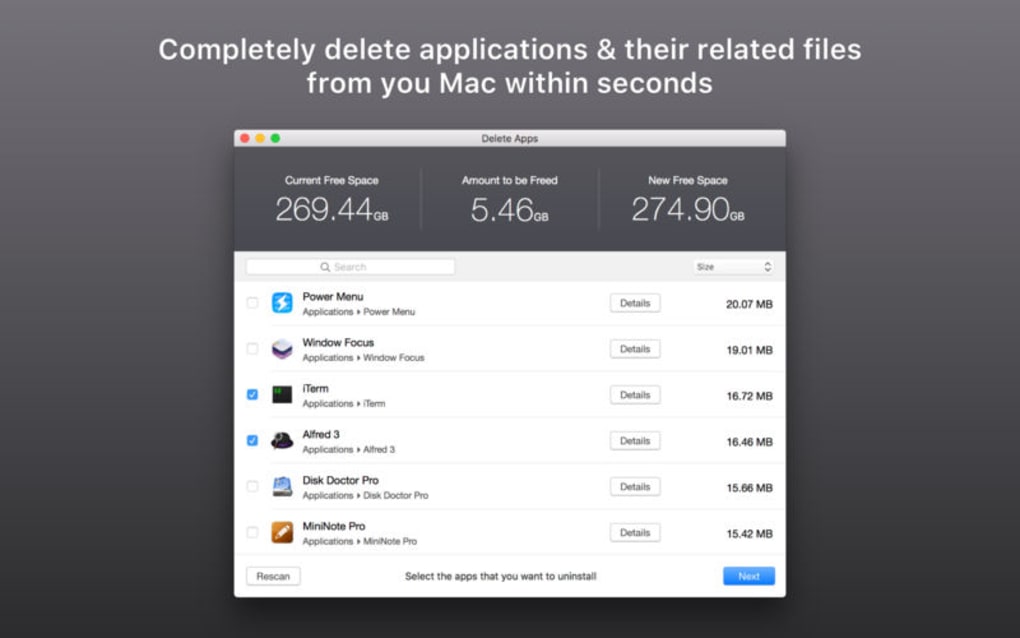
5. Select an app to remove: The main window displays a sortable list of all user‑installed programs.
Use the search bar or scroll to find the unwanted app, then click the “Uninstall” button beside it.
6. Confirm the removal: A confirmation dialog appears; click “Yes” to proceed. The tool then calls Windows’ built‑in uninstaller.
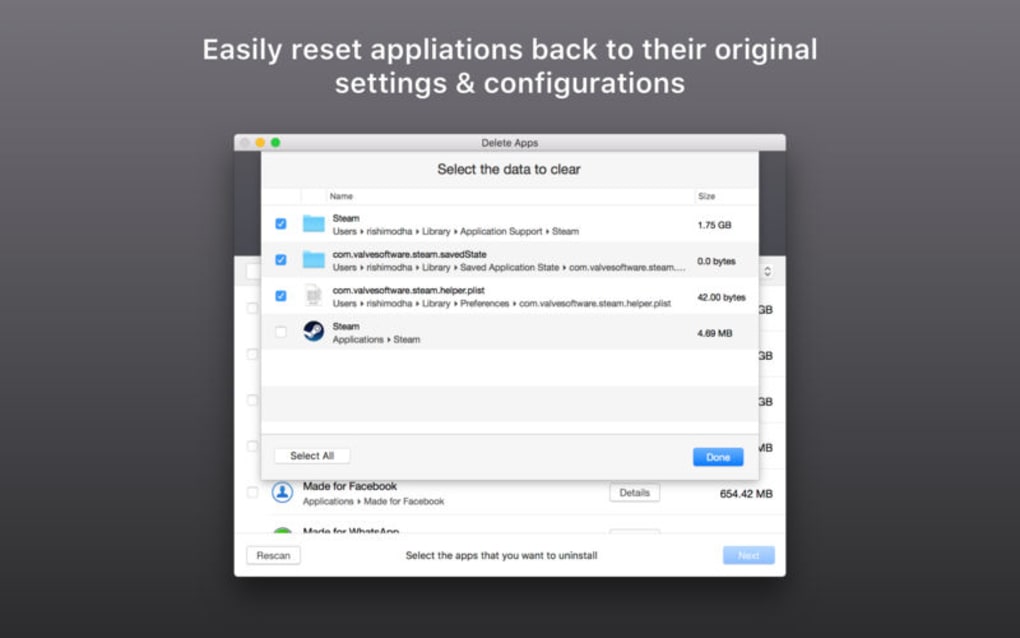
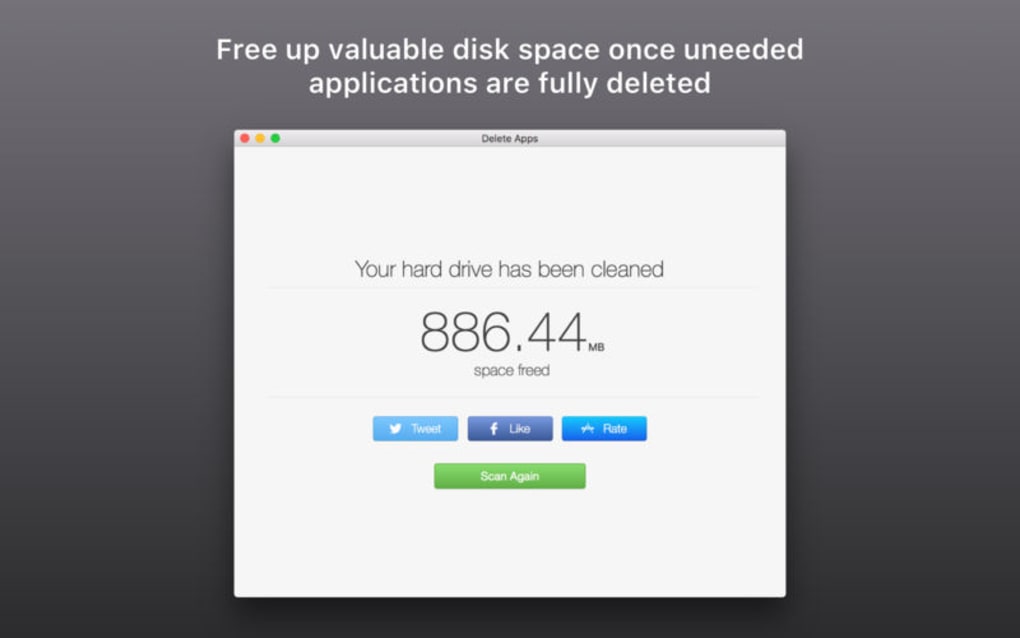
After the process finishes, Delete Apps Uninstaller shows a summary of any leftover files and offers a one‑click “Delete leftovers” option.
7. Routine maintenance: For best results, run the uninstaller quarterly to keep your system tidy. The tool’s lightweight nature means it won’t impact performance even when left open in the background.
Pros, Cons and Compatibility
Pros
- Fast, one‑click removal without navigating multiple system menus.
- Free and ad‑free, making it ideal for budget‑conscious users.
- Light on resources; runs smoothly on older PCs.
- Clear post‑uninstall report that helps you clean residual files.
- Simple, no‑learning‑curve interface suitable for beginners.
Cons
- Lacks deep cleaning features found in premium uninstallers (e.g., registry scrubbing).
- Cannot remove pre‑installed Windows components or system apps.
- No built‑in batch uninstall; you must remove apps individually.
- Only available for Windows; no macOS, Android, or iOS version.
Compatibility
Delete Apps Uninstaller is built specifically for the Windows ecosystem. It supports Windows 10, Windows 11, and legacy Windows 7 (both 32‑bit and 64‑bit). The installer detects the appropriate architecture automatically and adjusts the uninstall commands accordingly. Because the tool relies on Windows’ native uninstall API, it does not function on macOS, Linux, Android, or iOS devices. Users on non‑Windows platforms should look for alternative app removal utilities designed for those operating systems.
FAQ and Final Verdict
Is Delete Apps Uninstaller really free?
Yes, the software is completely free for personal use. There are no hidden fees, trial periods, or forced upgrades.
Can the tool remove Windows built‑in apps?
No. Delete Apps Uninstaller only works with applications that you installed yourself. System components and pre‑installed Windows apps are protected to prevent accidental system damage.
Does it clean the registry after uninstall?
The tool does not perform deep registry cleaning. It relies on Windows’ native uninstaller, which already removes most registry entries. For advanced cleaning, consider a dedicated registry cleaner.
Will the uninstaller affect my personal files?
Only files that belong to the selected application are targeted. The post‑uninstall scan only lists leftover files; it never deletes personal documents unless you explicitly confirm.
How often should I run Delete Apps Uninstaller?
Running it once a month or after a large software cleanup is sufficient. Regular use helps keep disk space free and prevents accumulation of orphaned files.
Conclusion & Call to Action
If you’re looking for a straightforward, secure way to declutter your Windows PC without the bloat of heavyweight uninstallers, Delete Apps Uninstaller delivers exactly that. Its minimalistic design, free price tag, and reliance on Windows’ own uninstall mechanisms make it a trustworthy choice for everyday users. While power users may miss deep‑scan features, the tool excels at its core promise: a fast, single‑click uninstall experience that surfaces leftover files for manual removal. Download Delete Apps Uninstaller today, run a quick cleanup, and enjoy a leaner, faster Windows environment. Click here to download now and start freeing up valuable disk space instantly.







